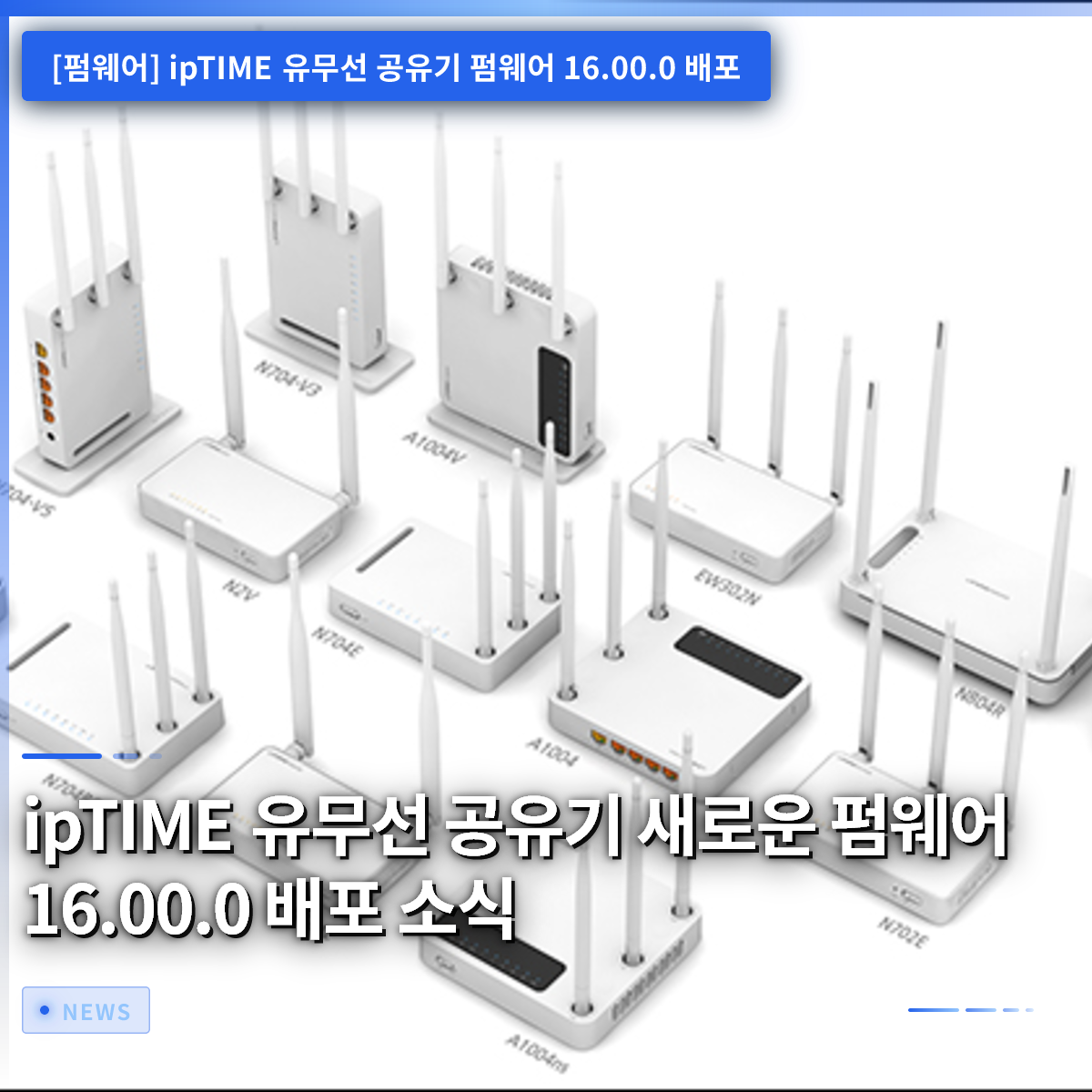
If you are an ipTIME wireless router user, you should pay attention to the official release of the latest firmware version, 16.00.0. This version significantly enhances wireless network stability and introduces a tool that allows you to easily manage your device via your smartphone even when you are away from home. This will be welcome news for those who have been frustrated by their devices in the living room constantly connecting to signals from distant rooms. Numerous features have been added that allow you to customize your Wi-Fi environment to your liking without complex settings. Let’s take a detailed look at the convenient new features introduced in this 16.00.0 version. Even if you have previously found accessing the router management screen difficult, you will be able to follow along easily after reading this article.
=
News on the Release of New Firmware 16.00.0 for ipTIME Wireless Routers
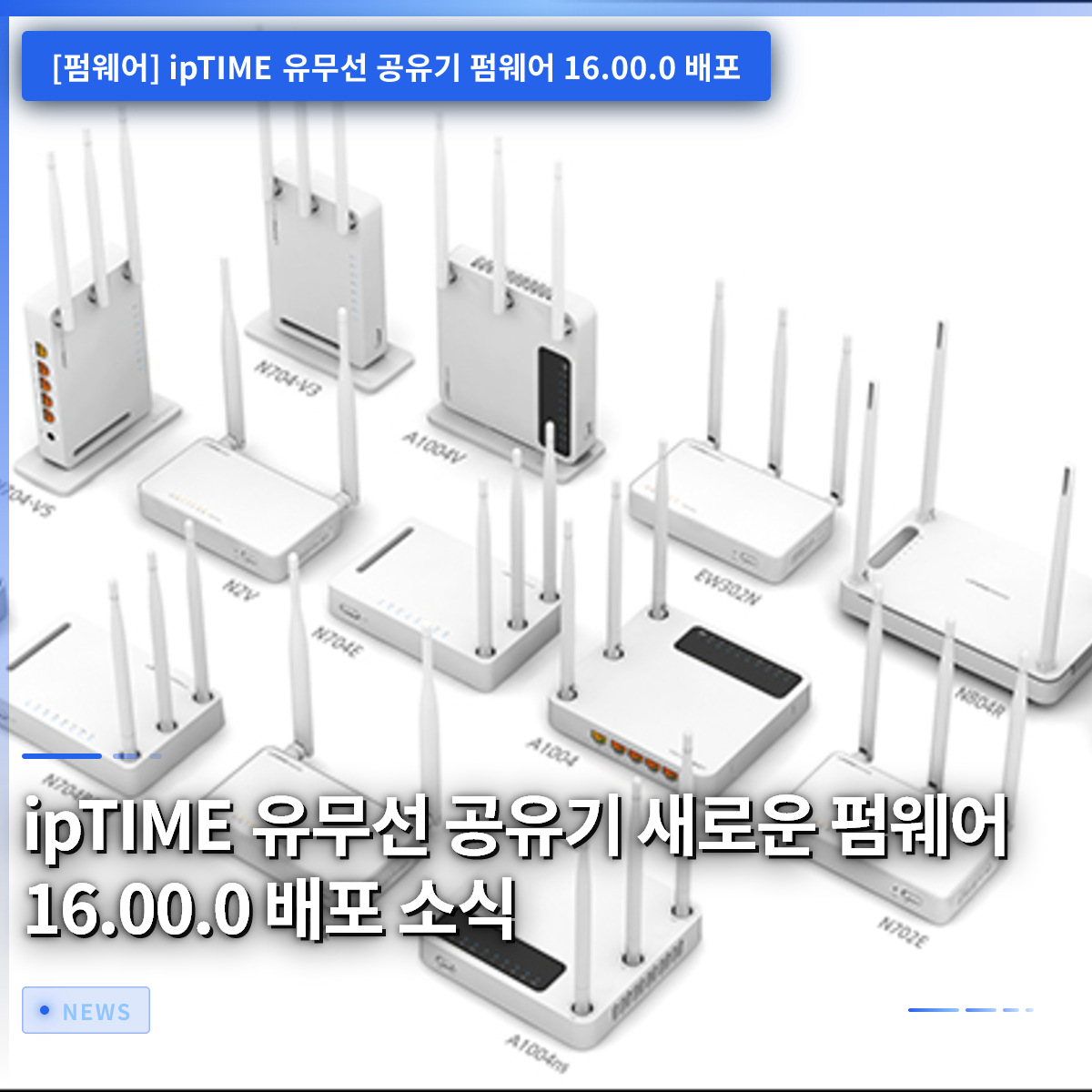
1. Introduction of Cloud-Based Device Management Tools
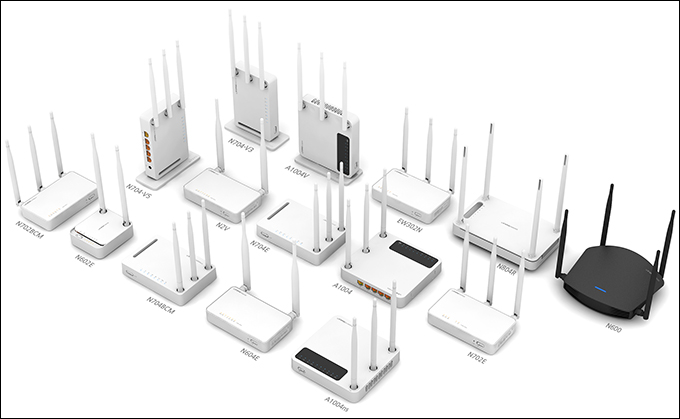
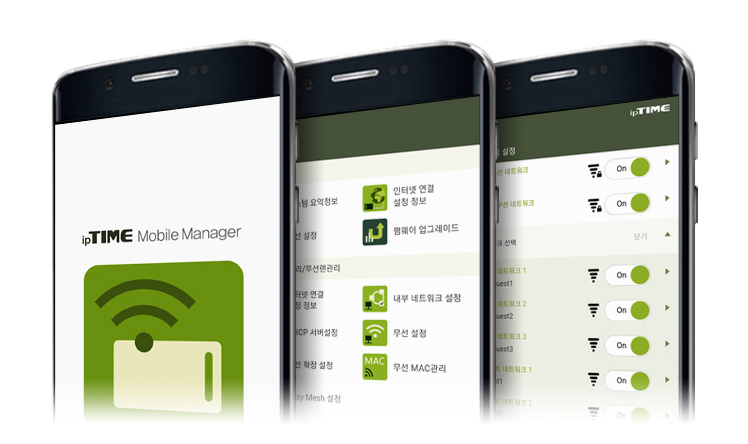
The most notable change in this 16.00.0 version is the beta support for a tool that allows remote device management. By using a smartphone app, you can check and manage the current status of your router in real time, even when you are away from home. You can access the management screen directly through the app without going through complex port forwarding or domain address registration processes. It supports passkey authentication, eliminating the need to enter passwords repeatedly while ensuring robust security. It supports everything from checking device status and receiving notifications to updating to the latest version and waking up a powered-off personal computer. This feature is available on almost all product lines released with this version, making it very convenient. However, some older models or specific product lines are excluded from this support, so it is recommended to check your device model number in advance. This beta service is set to launch fully this month, and the related smartphone app is scheduled to be released sequentially on Google and Apple stores. The manufacturer plans to provide detailed instructions on how to sign up and register your device through a separate notice. A major advantage is that you can immediately assess the situation if there are internet connection issues while you are away. In the future, you will no longer need to call home or rush back just to manage your router, making daily life much more relaxed.
A remote management feature has been added in beta, allowing you to easily manage your router from outside your home via a smartphone app.
2. Preventing Disconnections with the Wireless Connection Pinning Feature
When using wireless internet at home, you may encounter frustrating situations where your device connects to a signal from a distant room instead of the nearby router, causing a significant drop in speed. With the newly added connection pinning feature, you can pin a specific device to the desired router and frequency band. For example, you can set a stationary smart TV or a living room internet phone to always connect only to the main router. Even if the device attempts to move to another location, the controller automatically guides it back to its original position, preventing wireless disconnections. This is particularly useful when a device connects to a distant router and slows down. It is also very helpful when a device moves between rooms causing frequent disconnections, or when you want to ensure a specific device stays on a particular frequency band. The setup is very simple: just press the device in the management screen to open the details window, then select the location under the network menu. Pinned devices can be easily distinguished by a green pin icon on the screen, while devices in motion blink orange to intuitively show their current status. You can pin up to 50 devices, making it suitable for efficiently managing numerous devices in a home or small office. For those who want to control their wireless internet quality themselves, this feature addition is truly a godsend.
You can pin specific devices to your desired wireless router and frequency band to prevent speed drops and connection disconnections.
3. Mesh Network Features and Enhanced Stability
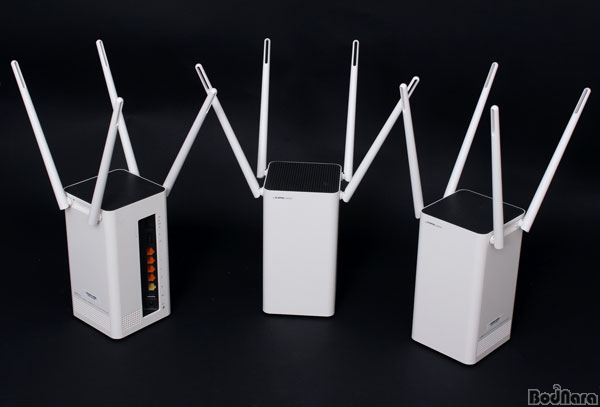
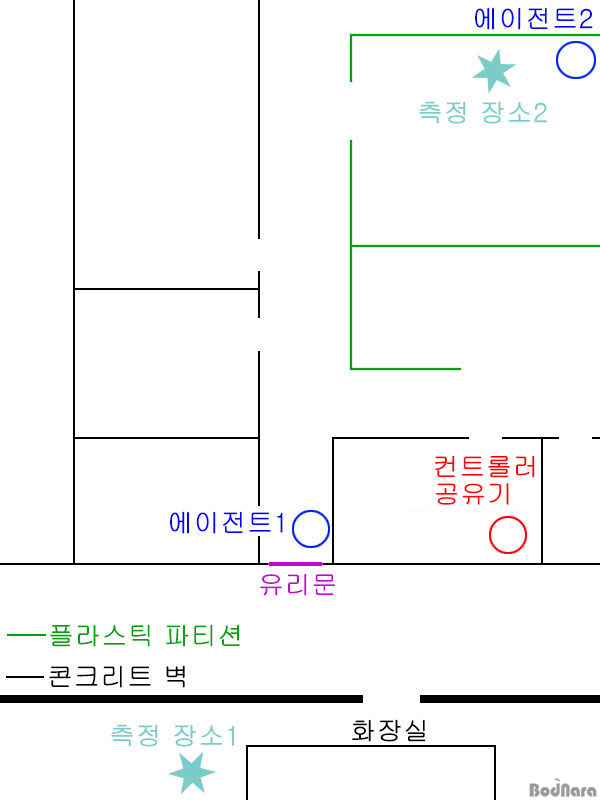
The mesh network feature, which connects multiple wireless devices to cover a wide area, has also been refined in this update. The issue where stationary devices like set-top boxes or home appliances would connect to the wrong node and experience slow speeds has been definitively fixed. In particular, for certain models, the persistent issue where wireless output abnormally dropped when used as an extension node has been cleanly resolved. Now, even when operating as an extension node, you can receive remote support, allowing you to quickly seek help if problems arise. A dedicated camera icon has also been added to the map view that displays the network connection structure at a glance, making it intuitive to see which device is connected where. More options for fine-tuning the frequency width have been added in the detailed settings screen, making it easier to optimize wireless signals according to your surrounding environment. If your home has many walls or a complex structure that often causes wireless dead zones, you will greatly benefit from these stability improvements. Intermittent wireless disconnections and speed drops that occurred in the past have been largely resolved, resulting in a significantly smoother overall performance experience. The manufacturer has demonstrated its commitment to continuous stability improvements by actively incorporating user feedback. For users sensitive to Wi-Fi quality, these fixes alone provide sufficient reason to proceed with the update.
The issue of reduced wireless output on extension nodes has been fixed, and mesh network features have been refined for greater stability.
4. Added Features for Extender Product Lines and Log Improvements
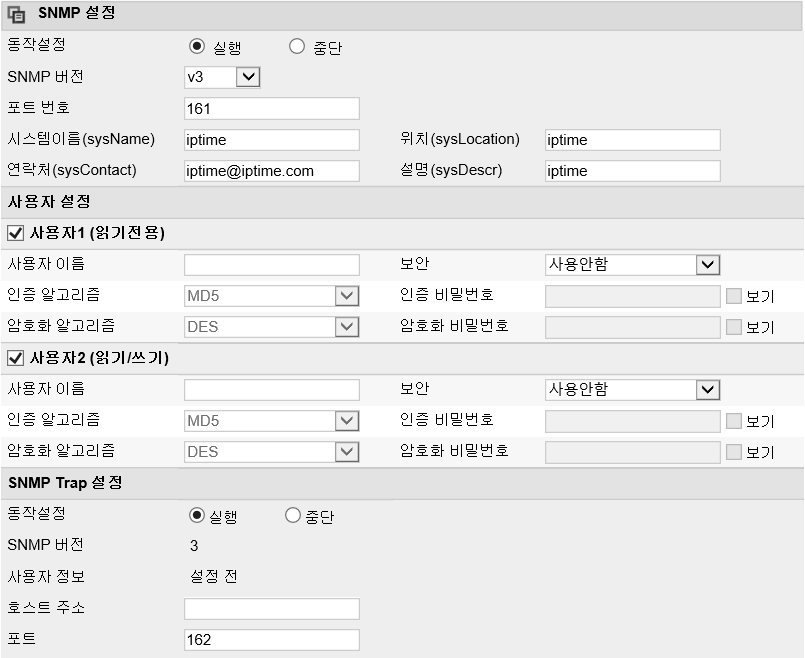
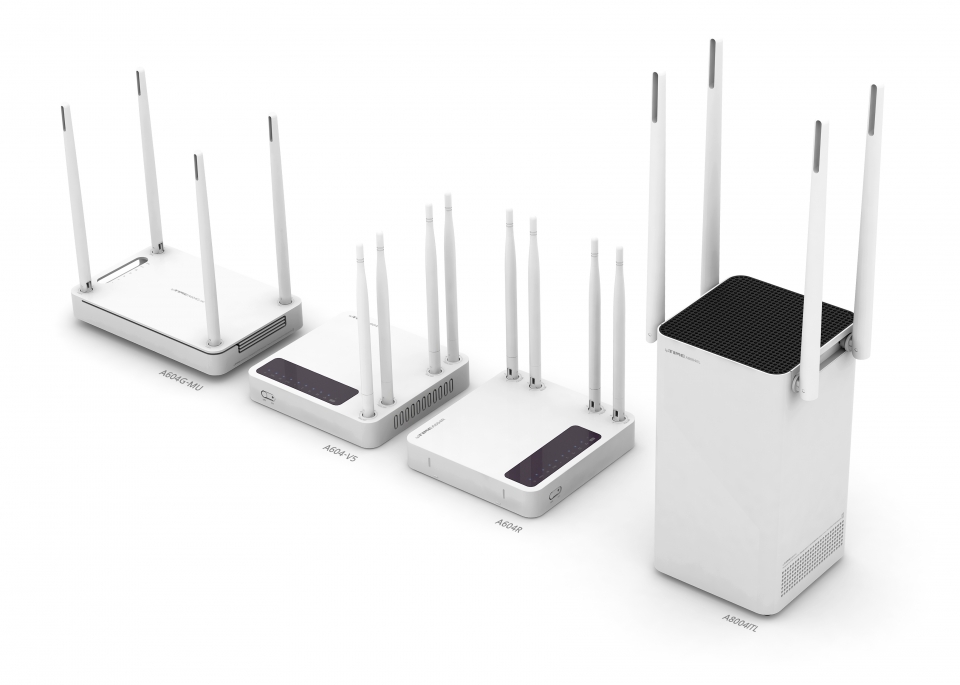
This firmware also brings good news for users of extender product lines that expand wireless signals, in addition to the main router. Devices used solely as extenders can now utilize the remote support feature, making it easier to receive remote diagnostics when issues arise. Additionally, the inconvenience of having to wait a long time to access the screen due to excessive system log records has been completely resolved. The method for displaying the log list has been changed to split it across multiple pages, significantly speeding up access to the log screen. While this may seem minor, as you use the product for a longer period, checking internal device records becomes more frequent, making this speed improvement very welcome. In environments where many devices are connected, such as offices or stores, where logs accumulate rapidly, this change greatly enhances user satisfaction. It is designed to reduce unnecessary waiting times and use system resources efficiently, which also has a positive impact on the device’s lifespan and stability. This shows how meticulously the development team considers the actual usage environment of users. For residents of wide houses or commercial establishments that use multiple extenders, this change provides quite useful management convenience. We look forward to these meticulous feature improvements continuing to create a glitch-free wireless environment in the future.
Remote support is now available for extender product lines, and the log lookup method has been improved to speed up screen access.
5. Precautions and Preparations Before Updating Firmware
Before upgrading to the new version, you should check a few important precautions to avoid potential issues later. You must access the web interface or dedicated app for router management and accurately compare your current model name and version information. There is a risk that the device may become unresponsive if the signal is lost during a wireless update, so it is safer to use a computer connected via a wired connection whenever possible. If you must proceed wirelessly, ensure you are in a location with minimal interference and a strong signal to download the file stably. The habit of backing up your current configuration file before making changes is always a good shield against unexpected accidents. Depending on the internet service provider, the connection may briefly drop during the upgrade, so it is wise to avoid performing critical tasks during this time. You need to be meticulous in repeatedly checking that you have downloaded the exact file suitable for your device from the official website or customer support library. Occasionally, uploading a file for the wrong model can cause the device to malfunction, so be sure to check the model number suffix at least twice. While the 16.00.0 version supports a wide range of products, some devices are excluded, so it is the first step to review your device list. Thorough preparation is the most reliable shortcut to fast and safe device management.
For a safe upgrade, accurately verify your model name, back up your configuration file, and proceed preferably while connected via a wired connection.
6. The Future of a Smarter Home Network
The release of this 16.00.0 version is an important milestone that goes beyond simply fixing minor bugs, clearly showing the direction wireless routers are heading. Remote management via smartphone apps and the wireless connection pinning feature help build a wireless environment in ordinary homes that rivals professional setups. This update proves that the era when anyone can easily enjoy seamless internet anywhere in their home is rapidly approaching. As the trend of increasing IoT devices continues, the role of routers will grow, and related features will evolve. Check your device now and update to the latest version to experience the improved Wi-Fi speed for yourself. Enjoy the pleasure of feeling how much more convenient your daily internet environment becomes with just a little effort.
This 16.00.0 version provides various convenience features that allow you to manage your home wireless environment at a professional level.
Frequently Asked Questions
=